
Each website
Charts cover the last 24 hours. Recent check requests sit next to them.
How UptimeWire works
Add a website, choose how often to check it, and stay informed about confirmed problems. UptimeWire brings uptime, SSL certificate, domain expiration, and DNS checks together in one clear monitoring workspace.
Website address
https://shop.example
Four checks, included
Monitoring results, last 24 hours212 ms
An alert, only if a problem is confirmed
Down: shop.example
A simple start
Sign up, then confirm your email address.
Enter its address and give it a name.
Decide how often to check and where alerts go.
The first check runs, and your results collect in one place.
Optional. Add them whenever you are ready.
Step 01
Get started with UptimeWire and access your monitoring workspace. The Free plan includes monitoring for one website with all four essential checks.
Next: confirm your email. Open the link we send you, then add your first website.
Step 02
Enter the website address you want UptimeWire to check, and give it a name. Each monitored address counts as one website, and includes uptime, SSL certificate, domain expiration, and DNS resolution checks.
Your Website's Full URL
https://shop.example
Give Your Monitor a Name
My shop
That is all it asks for here. You do not create four separate entries or pick check types: all four checks come with the address.
An address is monitored exactly as you enter it. Adding a domain does not include its subdomains or other paths.
Website limits by plan: Free 1, Starter 10, Business 25, and Agency 100. Compare plans.
Alert email
you@shop.example
Check interval
5 minutes
Choices on the Free plan
Step 03
Set the interval for website availability checks based on your subscription plan, and enter the email address that should receive alerts. Shorter intervals allow UptimeWire to check availability more frequently.
The shortest interval on each plan. Longer ones are available too, up to one day.
This setting applies to availability checks only. The other three keep their own schedule: certificates every 6 hours, DNS every hour, and domains once a day.
Step 04
When you finish, the first check starts and the page shows you the result. Once monitoring is active, UptimeWire shows your website's availability, response times, and the results of its essential checks.
My shop is up
https://shop.example answered with status 200 in 212 ms. We keep checking it. If it goes down, the alert goes to you@shop.example.
If the site does not answer, the screen says so and gives the reason. A first failed check is not yet an outage.
Last 24 hours
Domain expiration information may be unavailable: some registries do not publish a date. The dashboard then shows the domain as unknown.
Step 05, optional
Your alert email already works from step 3. Add other channels whenever you are ready, under Notifications in your profile.
UptimeWire sends notifications when incidents are confirmed and closed, and when supported warning conditions are reached. To connect Telegram, you open a link and press Start.
| Channel | Outages, recoveries | Warnings | From plan |
|---|---|---|---|
| Yes | Yes | Free | |
| Telegram | Yes | Yes | Free |
| Discord | Yes | No | Starter |
| Webhooks | Yes | No | Starter |
| Slack | Yes | No | Business |
| Microsoft Teams | Yes | No | Business |
Warnings cover certificates and domains with fewer than 30 days left, and DNS resolution failures. A warning is sent once for each problem, not repeated.
When something goes wrong
UptimeWire checks repeated failures before confirming an outage. Once an incident is confirmed, it appears in monitoring history and supported notifications can be sent.
The reason is recorded. No alert yet.
The website is checked again soon after.
When available, another server looks too.
It opens in your monitoring history.
Your connected channels are told.
The incident closes, and you hear about that too.
A single failed check does not trigger an outage notification. This is the general sequence, and timing can differ from one incident to another. More in Features.
Clear monitoring information
Review website status, response time trends, confirmed incidents, and available monitoring history.
Response time, last 24 hours
24 hours agoNow
Incidents that happened
Open an incident
Charts cover the last 24 hours. Recent check requests sit next to them.
With two or more websites, the dashboard table adds a 30-day uptime figure for each one.
How far back you can look depends on your plan: Free 30 days, Starter 90 days, Business 1 year, and Agency 2 years.
Status pages start on Starter. From Business: SLA reports, CSV export, and reports for your clients. See who uses what.
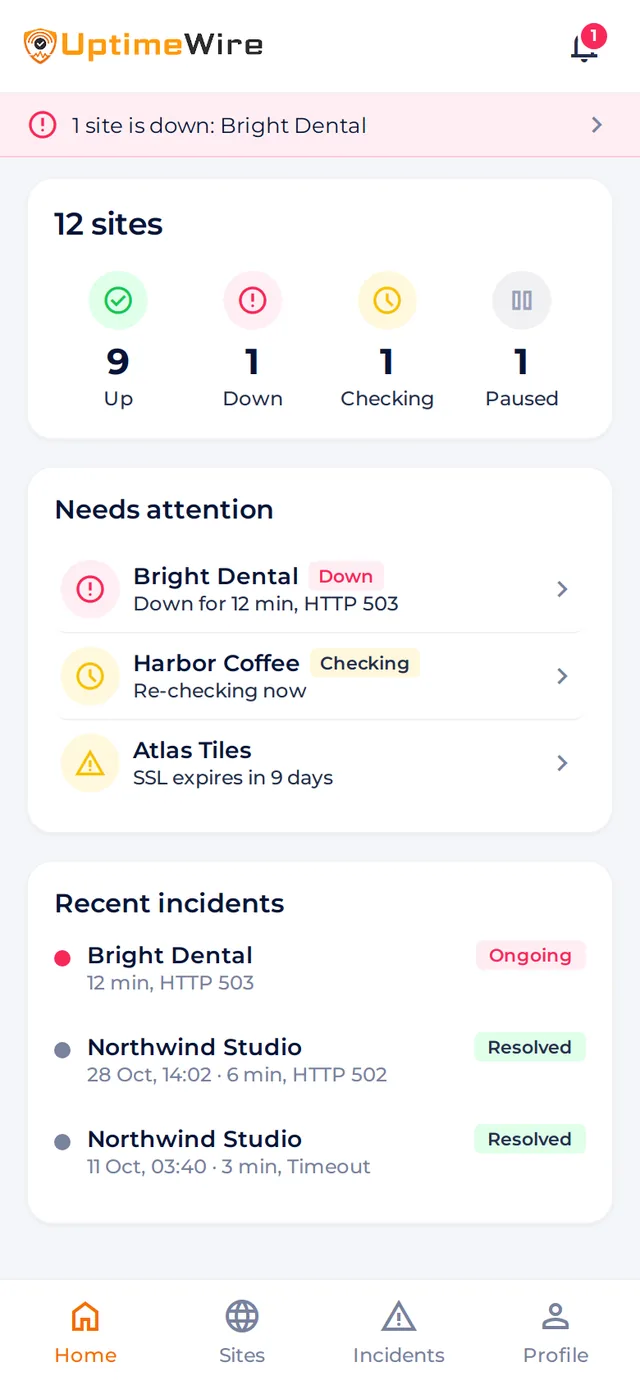
Monitor wherever you are
Use UptimeWire on the web or access supported monitoring information through the iOS and Android mobile applications. Check your websites and incidents, and get push alerts in the app.


Frequently asked questions
Create an account and confirm your email address. Then enter the website's full address and a name, enter an alert email, and choose a check interval. The first check starts when you finish.
One website is one exact address. example.com, www.example.com, and example.com/shop count as three websites.
No. Uptime, SSL certificate, domain expiration, and DNS resolution checks come with every address, on every plan. There is nothing to switch on. A certificate is checked only when the address starts with https://.
Availability is checked at the interval you choose: 1, 3, 5, 15, or 30 minutes, or 1, 6, 12, or 24 hours. Your plan sets the shortest one: Free 5 minutes, Starter 3 minutes, Business 1 minute, and Agency 1 minute. Certificates are checked every 6 hours, DNS every hour, and domains once a day.
A website must fail three checks in a row, about 20 seconds apart. When available, an additional check from elsewhere then verifies the result. If that check shows the site working, no incident opens.
When an incident is confirmed and when it closes. You also get a warning when a certificate or domain has fewer than 30 days left, when a certificate has a problem, or when DNS resolution fails. Warnings go by email and Telegram, once for each problem.
Yes. You can change a website's address, name, alert email, and check interval, and pause or delete it. A new alert email must be confirmed first; until then, alerts keep going to the old one.
Yes. There are apps for iOS and Android for checking your websites and incidents. You sign up and manage your plan on the web.
Start monitoring one website for free, with uptime, SSL certificate, domain expiration, and DNS resolution checks included.